
Process
- Most faculty and staff members are automatically granted access to Faculty and Staff Global Dashboards. Check to see if what you need is included in the Faculty and Staff Global Dashboards.
- Before you request access, check your current access to see the access you currently have.
- Identify areas that require a special access request.
- Submit access request(s) as needed.
Global Dashboards
There are two types of Global Dashboards:
- Faculty and Staff Global Dashboards
- Student Global Dashboards
Global Dashboards have summary level data for different operational areas.
Faculty and Staff Global Dashboards: These dashboards are automatically available to most faculty and staff members, so you do not need to request access. If you have not automatically received access, you may submit a Faculty and Staff Global Dashboards access request as noted below. This includes student employees with a business need to see procurement and workforce data.
Student Global Dashboards: These dashboards are available for request by student employees with a business need to see student data.
See Access by Subject Area below for a listing of dashboards by subject area, including those with default global access as well as others that require a special request for access.
What is included in Faculty and Staff Global Dashboards?
Subject Area |
Dashboards |
|
Academic Planning |
Campus Enrollment At a Glance |
|
Campus Workforce (HR) Planning |
At a Glance |
|
Workforce Summary |
Staff Compensation Summary |
|
Procure to Pay |
At a Glance |
|
Student Applicants |
Undergraduate Applicants |
|
Student Curriculum |
At a Glance |
|
Student Demographics Outcomes |
At a Glance |
|
Student Financial Aid |
Student Financial Aid |
|
Student Financials |
Student Fees Payments |
|
Security Reports |
Customer Access Privileges |
|
Usage Tracking |
Cal Answers Usage Tracking |
What is included in Student Global Dashboards?
How do I request access to Faculty and Staff Global Dashboards?
1. Log in to CalAccess. (Log in to VPN first if you are off-campus.)
2. Click the Initiate New Request button.
3. Choose the Faculty and Staff Global Dashboards application, then click Continue.
4. Read the note to confirm you are a faculty or staff employee, or a student employee with a business need to see procurement and workforce data, then click Continue.
5. Indicate your business need for access, then click Submit.
Note: Cal Answers is an administrative information system, and access is only granted for assigned and authorized university duties. Access requests must be approved by both your supervisor and a data steward.
If you do not have a supervisor listed in UCPath, but still submit this access request, it will not be able to be processed.
How do I request access to Student Global Dashboards?
1. Log in to CalAccess. (Log in to VPN first if you are off-campus.)
2. Click the Initiate New Request button.
3. Choose the Student Global Dashboards application, then click Continue.
4. Read the note to confirm you are a student employee with a business need to see student data, then click Continue.
5. Indicate your business need for access, then click Submit.
Note: Cal Answers is an administrative information system, and access is only granted for assigned and authorized university duties. Access requests must be approved by both your supervisor and a data steward.
If you do not have a supervisor listed in UCPath, but still submit this access request, it will not be able to be processed.
How to Check Current Access
Most faculty and staff members are automatically granted access to Faculty and Staff Global Dashboards. Some subject areas require special access.
Before you request access, run the Customer Access Privileges dashboard to look up what access you currently have. You can also check access for your whole unit if you manage key controls.
Instructions
Run the Customer Access Reports tab to see what dashboards and areas of data you can see.
- You can use one or all the dashboard prompts. You can find the Calnet User ID (UID) using either:
- The Berkeley Directory. This is good for looking up one or a couple of UIDs.
- The Employee Crosswalk dashboard (you have access to it if you have Cal Answers HR Reporting access). This is good for looking up your unit's roster of UIDs. Select the Current Employees Only = Yes checkmark, then input your unit's L4 and L5 nodes in the Primary Department prompt. You can type each individually with a semicolon and no space after, e.g. "12345;67890". Or you can click the dropdown menu, then 'Search', then the pencil icon at the top right of the Selected box, then paste a list of the nodes.
- Once you get the UIDs, go back to the Customer Access Reports tab in the Customer Access Privileges dashboard. You can paste or type each UID. Multiple UIDs are separated by a semicolon and no space after, e.g. "12345;67890". To paste a roster of UIDs, click the Calnet UID prompt dropdown, then 'Search', then the pencil icon at the top right of the Selected box, then paste the UIDs.
- You can look up a list of users who have access to a certain dashboard or data role using the Access Role prompt.
The Customer Access Reports tab tells you what reports and level of data access you have. The Data Access Reports tab tells you what particular org node(s) you have access to for the level of data access you have.
How to Request Access by Subject Area
HR Reporting
Please note requesting access to UCPath is separate from requesting access to HR reporting in CalAnswers, even though the reports source the data from UCPath. Review UCPath’s instructions for requesting access to UCPath.
| Subject Area | Dashboards | Access | Access Granted | Approval |
| Campus Workforce (HR) Planning |
At a Glance |
Global | All orgs | N/A |
| Workforce Detail including Ad Hoc | All Workforce Detail + Employee Crosswalk | Request Access | Restricted by Organization |
1. Supervisor as recorded in UCPath 2. HR data approver 3. UCPath Operations team |
| Affirmative Action including Ad Hoc |
All |
Email the AA EEO team at staffeeo@berkeley.edu for a consultation | All orgs |
N/A |
| HR Census Ad Hoc |
Just ad hoc The HR Census dashboard is already available to all Cal Answers users. |
Email the AA EEO team at staffeeo@berkeley.edu for a consultation | All orgs |
N/A |
Financials
| Subject Area | Dashboards | Access | Access Granted | Approval |
| Finance including Ad Hoc (includes Gift and Endowment) |
All except Telecom Usage | Request Access | All orgs |
1. Supervisor as recorded in UCPath 2. Divisional Finance Leader |
|
Finance - Gift and Endowment |
Foundation Reporting Gift/Endowment Reporting |
Request Access | All orgs |
1. Supervisor as recorded in UCPath 2. Divisional Finance Leader |
| Finance - Telecom Usage | Telecom Usage | Request Access | Restricted by Organization |
1. Supervisor as recorded in UCPath 2. Divisional Finance Leader |
| Permanent Budget (PermBudg) including ad hoc | All | Request Access | Restricted by Organization |
1. Supervisor as recorded in UCPath 2. Divisional Finance Leader |
Payroll
| Subject Area | Dashboards | Access | Access Granted | Approval |
| Payroll including ad hoc | All | Request Access | All orgs |
1. Supervisor as recorded in UCPath 2. Divisional Finance Leader |
PI Portfolio
Principal Investigator (PI) Access to your own portfolio is automatically granted to PIs, faculty, and researchers with funding that is allocated and tracked with Chartfield2s linked to your Employee ID. With this access, you can:
- View your entire portfolio. This includes funds that you share with other PI(s).
- View HR data by Employee ID for employees allocated to your CF2(s)
- Ability to write projections on your own portfolio
Request access if you are helping a PI or many PIs manage their portfolio. You need to be employed by UC Berkeley to use PI Portfolio, not an affiliate or visiting PI. See Access PI Portfolio to learn what comes with your access.
Student Data
To use Cal Answers Student Data, you must read and agree to abide by the Cal Answers Student Data Terms of Use.
| Subject Area | Dashboards | Access | Access Granted | Approval |
|
Academic Planning, Student Applicants, Student Curriculum, Student Demographics & Outcomes, Student Financials, Student Financial Aid |
All except Restricted dashboards in the Student Demographics & Outcomes subject area | Global | All orgs | N/A |
| Student Restricted |
Restricted Graduation & Retention |
Request Access | Restricted by Organization |
Complete FERPA training before requesting access. 1. Supervisor as recorded in UCPath 2. Office of the Registrar |
| Student Data ad hoc | Ad hoc data from the dashboards in the Student Applicants and Student Demographics & Outcomes subject areas | Request Access | Restricted by Organization |
Complete FERPA trainingbefore requesting access. 1. Supervisor as recorded in UCPath 2. Office of the Registrar or Office of Undergraduate Admissions |
| Additional Student Data ad hoc |
Ad hoc data from the dashboards in the Student Curriculum and Graduate Applicants subject areas. |
Emailcalanswers-help@berkeley.edufor a consultation, or for other Student Data-related questions. | Restricted by Organization |
Special considerations for access to Student Data Ad Hoc
- If you have access to student data ad hoc, you can see summary data globally across campus but individual data by student and instructor within an org can be seen only if you are approved access to the org. It is possible to see individual data for some orgs and summary data only for others in the same analysis.
- While you can request data for "all students including confidential records," access to confidential records is rarely granted and only when a compelling need to do so is clearly articulated. Confidential records are those for a small subset of students and alumni who--generally for personal security purposes--have exercised their right under FERPA to restrict access to their entire record to only those with a clear need to know. The Office of the Registrar, for example, cannot even verify attendance and degrees for this population without the express written consent of the student or alum.
Subject Areas That Require Special Access Requests
Expand a Subject Area to see more information about what is included and how to request access.
Financial Dashboards and Ad Hoc
Permanent Budget Dashboards and Ad Hoc
Student Data Restricted Dashboards
Workforce Detail and Ad Hoc
Access includes all the Workforce Detail dashboards, its ad hoc areas, and the Employee Crosswalk dashboard. If your request is approved, you get access to all of these with summary and detail data for the orgs you requested. If your request is rejected, you get no access.
Please note this access request is separate from requesting access to UCPath itself. If you are approved for access for this request, it means you can access Workforce Detail reporting in Cal Answers for data sourced from UCPath. It does not mean you can access UCPath itself. You need to submit a separate access request to access UCPath itself. Likewise, if you are approved for access to UCPath itself, it does not mean you can access Workforce Detail reporting in Cal Answers. You need to submit a separate access request per the instructions cited here.
- Go to SARA (requires VPN).
- Select Request Access for Yourself or Your Employee and follow the ensuing steps to log in and request access for yourself or your employee.
- Select Request or Change Access and then click Next.
- Select CalAnswers HR Reporting.
- If you are requesting access to a certain org(s), select Request Cal Answers HR Departmental Access and click Next.
- If you are requesting access to all orgs, select Request CalAnswers HR Global Access (central campus only) and click Next.
Option A:
- Check the box for Cal Answers HR Detail in the HCM Roles section.
- Select the Org Tree Level.
-
In the Department ID box, you can enter the ID if you know it. Or you can click the question mark icon to open a list of orgs and select the one you need. (Note: This is not the numerical Dept ID used for finance.)
-
Select Add in the Action section and click the Make Request button. This adds your selection to the Items Selected section.
-
To request access to another Department ID within the same Org Tree Level, repeat the previous steps. (Note: If you are requesting access to multiple Department IDs that don't roll up to the same Org Tree Level, you will encounter an error message once you proceed to the next step. You need to create a separate request for each set of IDs that roll up to the same Level.)
-
When all access you need appears in the Items Selected section, click Next.
- Enter the email address of your supervisor as recorded in UCPath, then click Submit.
Option B:
- Check the box for CalAnswers HR Detail in the Campus-Wide Access section.
- Select Add for the Action.
- Select your Home Department from the drop-down list. (Note: The Home Department defaults to the Department for your primary job in UCPath. Typically you can leave it as is. If you have multiple jobs, select the Home Department of the job you are requesting access for.)
- Click Make Request.
- Enter the Reason for Requesting Campus-Wide Access and click Next.
- Enter the email address of your supervisor as recorded in UCPath, then click Submit.
The system will route to your supervisor as recorded in UCPath as the first level of approval, to the HR data approver of the Department ID (or campus-wide access) you requested as the second level of approval, then to the UCPath Operations team as final approval. Access will be granted after the UCPath Operations team approves.

Workforce Summary
Access includes all the Workforce Summary dashboards (currently there is only one- Staff Compensation Summary dashboard). This does not grant ad hoc access. Once you submit, your request is routed to your supervisor for approval. Access is granted once approved to summary data for all units.
Please note this access request is separate from requesting access to UCPath itself. If you are approved for access for this request, it means you can access Workforce Summary reporting in Cal Answers for data sourced from UCPath. It does not mean you can access UCPath itself. You need to submit a separate access request to access UCPath itself. Likewise, if you are approved for access to UCPath itself, it does not mean you can access Workforce Summary reporting in Cal Answers. You need to submit a separate access request per the instructions cited here.
Procedure
- Go to SARA (requires VPN).
- Select Request Access for Yourself or Your Employee and follow the ensuing steps to log in and request access for yourself or your employee.
- Select Request or Change Access and then click Next.
- Select CalAnswers HR Reporting.
- Select Request CalAnswers HR Global Access (central campus only) and click Next.
- Check the box for Cal Answers HR Summary.
- Select Add for the Action.
- Select your Home Department from the drop-down list. (Note: The Home Department defaults to the Department for your primary job in UCPath. Typically you can leave it as is. If you have multiple jobs, select the Home Department of the job you are requesting access for.)
- Click Make Request.
- Enter the Reason for Requesting Campus-Wide Access and click Next.
- Enter the email address of your supervisor as recorded in UCPath, then click Submit.
The system will route to your supervisor as recorded in UCPath as the first level of approval, to the HR data approver of HR Global Access as the second level of approval, then to the UCPath Operations team as final approval. Access will be granted after the UCPath Operations team approves.

Financial Dashboards and Ad Hoc
Access includes all the Finance dashboards (except Telecom Phone Usage) and ad hoc area. If your request is approved, you get access to all of these with summary and detail data for all units. If your request is rejected, you get no access.
- Open the Add or Delete Finance, Gift & Endowment, and PI Portfolio Global Reporting form.
- Answer the first 3 questions.
- Select Add Access.
- Select Financials including Gift & Endowment.
- Enter the business need.
- Click Order Now in the upper right corner of the window.
The system will route to your supervisor as recorded in UCPath for the first level of approval, and then to the Divisional Finance Leader (DFL) for final approval. Access will be granted after the DFL approves.
Review the instructions for approving access if you are the supervisor or Divisional Finance Leader.
Gift & Endowment
Access includes just the foundation- and gift-related dashboards. This does not grant ad hoc access. If your request is approved, you get access to both of these with summary and detail data for all units. If your request is rejected, you get no access.
- Open the Add or Delete Finance, Gift & Endowment, and PI Portfolio Global Reporting form.
- Answer the first 3 questions.
- Select Add Access.
- Select Gift & Endowment only.
- Enter the business need.
- Click Order Now in the upper right corner of the window.
The system will route to your supervisor as recorded in UCPath for the first level of approval, and then to the Divisional Finance Leader (DFL) for final approval. Access will be granted after the DFL approves.
Review the instructions for approving access if you are the supervisor or Divisional Finance Leader.
Telecom Usage Dashboard
To access the Telecom Usage dashboard, you must have access to the Finance dashboards AND also have access to the Telecom Usage dashboard. When you submit, your request is routed to your supervisor (as recorded in UCPath) for approval. Access is granted once approved to summary and detail data for the orgs you requested.
- Go to SARA (requires VPN).
- Select Request Access for Yourself or Your Employee and follow the ensuing steps to log in and request access for yourself or your employee.
- Select Request or Change Access.
- Select BAIRS and BIS.
- Select yes or no to indicate whether or not you are a Mac user. Then select no to indicate that you do not have existing access to BAIRS or BIS. Click next to proceed.
- Select I need access restricted by org levels (most users) then click the Next button.
- Select Telecom Usage in the Type of Data section.
- Check the box for Standard Reports – Dashboards.
- Select Org Tree Level from the drop-down list.
- In the Org Level Node box, you can enter the code if you know it. Or you can click the question mark icon to open a list of orgs and select the one you need.
- Select Add Roles in the Action section and click the Add Request button. This adds your selection to the Items Selected section.
- To request access to another Org Level Node within the same Org Tree Level, repeat the previous steps. (Note: if you are requesting access to multiple Org Level Nodes that don't roll up to the same Org Tree Level, you will encounter an error message once you proceed to the next step. You need to create a separate request for each set of Nodes that roll up to the same level.)
- When all of the access you need appears in the Items Selected section, click Submit Request.
- Enter the email address of your supervisor as recorded in UCPath and then click Submit.
The system will route to your supervisor as recorded in UCPath for the first level of approval, and then to the Divisional Finance Leader (DFL) for final approval. Access will be granted after the DFL approves.

Payroll Dashboard and Ad Hoc
Access includes all the Legacy and UCPath Payroll dashboards and ad hoc areas. If your request is approved, you get access to all of these with summary and detail data for all units. If your request is rejected, you get no access.
- Go to SARA (requires VPN).
- Select Request Access for Yourself or Your Employee and follow the ensuing steps to log in and request access for yourself or your employee.
- Select Request or Change Access and click Next.
- Select BAIRS and BIS.
- Select yes or no to indicate whether or not you are a Mac user. Then select no to indicate that you do not have existing access to BAIRS or BIS. Click Next to proceed.
- Select I need access restricted by org levels (most users) and then click Next.
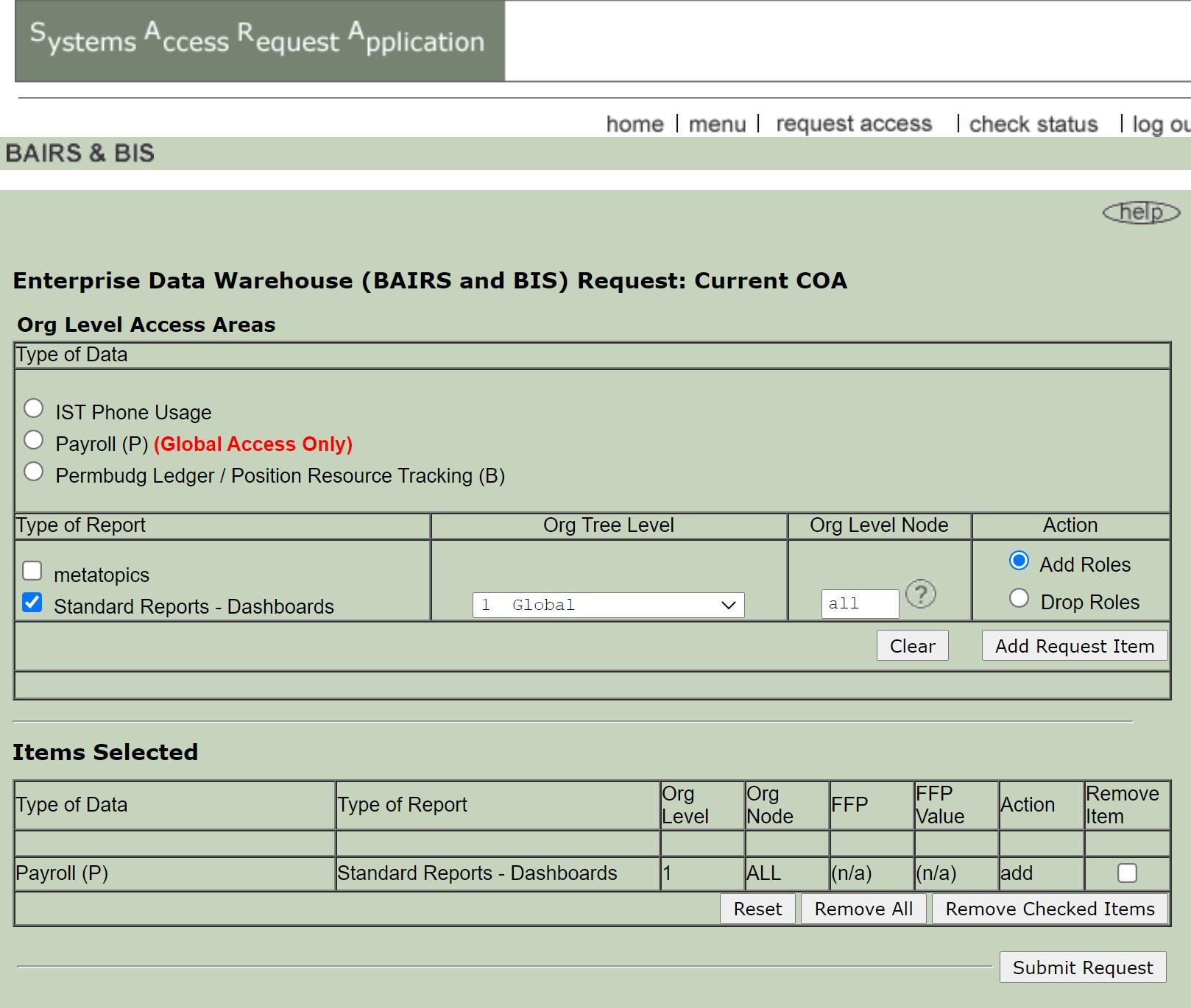
- Select Payroll (P) (Global Access Only) in the Type of Data section.
- Check the box for Standard Reports – Dashboards.
- Select Add Roles in the Action section and click the Add Request Item button. This adds your selection to the Items Selected section.
10. When all the access you need appears in the Items Selected section, click Submit Request.
11. Enter the email address of your supervisor as recorded in UCPath and then click Submit.
The system will route to your supervisor as recorded in UCPath for the first level of approval, and then to the Divisional Finance Leader (DFL) for final approval. Access will be granted after the DFL approves.
PI Portfolio Dashboards
Access to the PI Portfolio dashboards can be granted on a global-only basis or restricted by the lead PI or fund. You do not need to request access if you are a PI or researcher.
For view-only access to many PIs:
1. Open the Add or Delete Finance, Gift & Endowment, and PI Portfolio Global Reporting form.
2. Answer the first 3 questions.
3. Select Add Access.
4. Select PI Portfolio.
5. Select No - View Only.
6. Select No - PI Portfolio Only or Yes - PI Portfolio and Oversight.
7. Enter the business need.
8. Click Order Now in the upper right corner of the window.
The system will route to your supervisor as recorded in UCPath (or the Regional Director if your appointment is in Berkeley Regional Services) for the first level of approval, and then to the Divisional Finance Leader (DFL) for final approval. Access will be granted after the DFL approves.
Review the instructions for approving access if you are the supervisor, Regional Director, or Divisional Finance Leader.
For view-only access to one or a few PIs or funds:
1. Log in to CalAccess. (Log in to VPN first if you are off-campus.)
2. Click Initiate New Request.
3. Select PI Collaborator, then click Continue.
4. Select Collaborator in the Role drop-down list.
5. Select By Fund or By Lead PI from the Type of access drop-down list.
6. Enter the business need.
7. Click Submit.
Access will be granted after the Lead PI approves.
For access to create projections for one or more PIs:
1. Open the Add or Delete Finance, Gift & Endowment, and PI Portfolio Global Reporting form.
2. Answer the first 3 questions.
3. Select Add Access.
4. Select PI Portfolio.
5. Select Yes - Create Projections.
6. Select No - PI Portfolio Only or Yes - PI Portfolio and Oversight.
7. Enter the business need.
8. Click Order Now in the upper right corner of the window.
The system will route to your supervisor as recorded in UCPath (or the Regional Director if your appointment is in Berkeley Regional Services) for the first level of approval, and then to the Divisional Finance Leader (DFL) for final approval. Access will be granted after the DFL approves.
Review the instructions for approving access if you are the supervisor, Regional Director, or Divisional Finance Leader.
Permanent Budget Dashboards and Ad Hoc
Access includes all the legacy and UCPath PermBudg dashboards and ad hoc areas. If your request is approved, you get access to all of these with summary and detail data for the orgs you requested. If your request is rejected, you get no access.
- Go to SARA (requires VPN).
- Select Request Access for Yourself or Your Employee and follow the ensuing steps to log in and request access for yourself or your employee.
- Select Request or Change Access and then click Next.
- Select BAIRS and BIS.
- Select yes or no to indicate whether or not you are a Mac user. Then select No to indicate that you do not have existing access to BAIRS or BIS. Click Next to proceed.
- Select I need access restricted by org levels (most users) and then click Next.
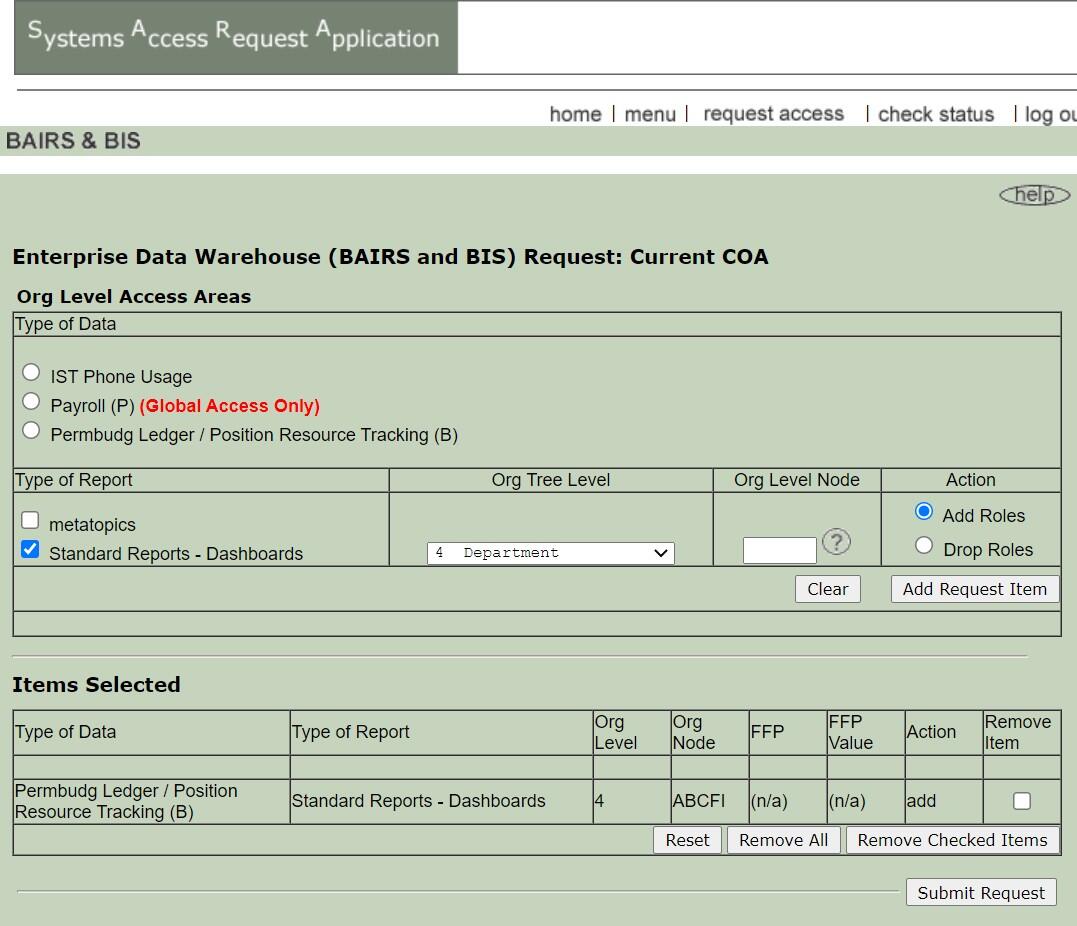
- Select Permbudg Ledger / Position Resource Tracking (B) in the Type of Data section
- Check the box for Standard Reports - Dashboards.
- Select Org Tree Level from the drop-down list.
10. In the Org Level Node box, you can enter the code if you know it. Or you can click the question mark icon to open a list of orgs and select the one you need.
11. Select Add Roles in the Action section and click the Add Request Item button. This adds your selection to the Items Selected section.
12. To request access to another Org Level Node within the same Org Tree Level, repeat the previous steps. (Note: if you are requesting access to multiple Org Level Nodes that don't roll up to the same Org Tree Level, you will encounter an error message once you proceed to the next step. You need to create a separate request for each set of Nodes that roll up to the same level.)
13. When all access you need appears in the Items Selected section, click the Submit. Request button.
14. Enter the email address of your supervisor as recorded in UCPath and then click Submit.
The system will route to your supervisor as recorded in UCPath for the first level of approval, and then to the Divisional Finance Leader (DFL) for final approval. Access will be granted after the DFL approves.
Student Data Restricted Dashboards
You will need to attach your FERPA completion certificate to the Add Student Data Restricted Dashboards form.
- Open the Add Student Data Restricted Dashboards form.
- Complete all required fields and then click Order Now in the upper right corner of the window.
Note: If you’d like to request All students including confidential records, you may do so. There are typically fewer than five students in any given semester who have their records listed as confidential. Historically, it has been more difficult to be granted with that level of access as compared to All students excluding confidential records.
The system will route to your supervisor as recorded in UCPath for the first level of approval, and then to the Office of the Registrar for final approval. Access will be granted after the Office of the Registrar approves.
Review the instructions for approving access if you are the supervisor or Office of the Registrar.
Student Data Ad Hoc
You will need to attach your FERPA completion certificate to the Add Student Data Ad Hoc Analyses form.
- Open the Add Student Data Ad Hoc Analyses form
- Complete all required fields and then click Order Now in the upper right corner of the window.
The system will route to your supervisor as recorded in UCPath for the first level of approval, and then to the Office of the Registrar (for student and degree recipient data) or Office of Undergraduate Admissions (for admissions data) for final approval. Access will be granted after the Office of the Registrar or Office of Undergraduate Admissions approves.
Review the instructions for approving access if you are the supervisor, Office of the Registrar, or Office of Undergraduate Admissions.